Starting your design with a photo of your actual space makes it easy to visualize exactly how your landscape will look. This is the most popular way to begin a design in SimplyScapes.
To start from an image:
- From your dashboard, click "Create Design" in the top right corner
- (optional) Enter a Project Name
- Select the design area (Front Yard, Backyard, Side Yard, etc.)
- Click "Start from Image"
- Choose your image source:
- Upload Photo - Select an image from your computer or device
- Use Your Images - Choose from photos you've previously uploaded to SimplyScapes
- Click "Start Design" or "Create Design"
The Visual Designer will open with your image as the background, ready for you to add plants, objects, and other design elements.
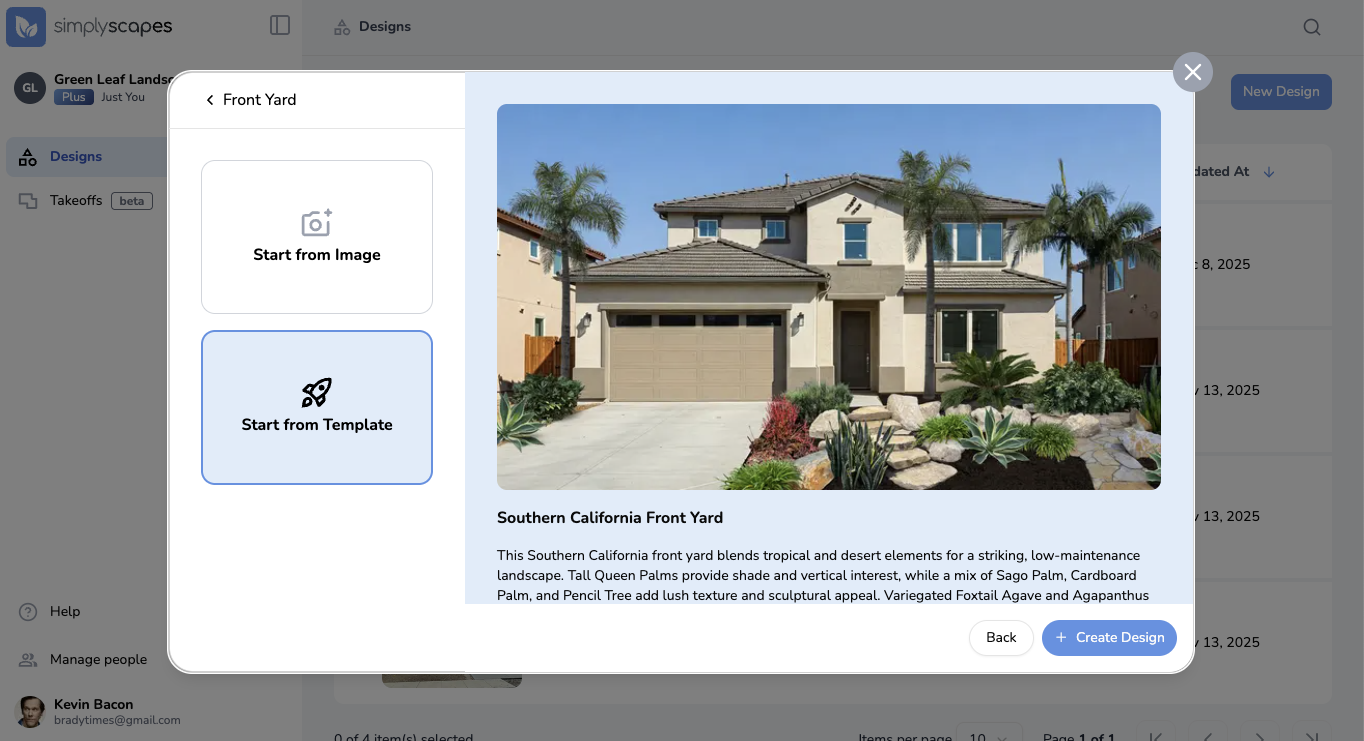
To start from a Template
- From your dashboard, click "Create Design" in the top right corner
- (optional) Enter a Project Name
- Select the design area (Front Yard, Backyard, Side Yard, etc.)
- Click "Start from Template"
- Choose a template
- Click "Start Design" or "Create Design"
Tips for best results:
- Use a photo taken from eye level or slightly elevated
- Ensure good lighting (avoid harsh shadows or very dark images)
- Take the photo straight-on rather than at extreme angles
- Clear, well-lit photos work best
Was this article helpful?
That’s Great!
Thank you for your feedback
Sorry! We couldn't be helpful
Thank you for your feedback
Feedback sent
We appreciate your effort and will try to fix the article