Contact & Support
Every way to reach the SimplyScapes team — chat with Milo, or use the "Talk to us" menu to create a support ticket, request a call back, schedule a demo, or send a feature request. Plus our support email.
SimplyScapes is a small team, and we like staying close to the people we build for. There's no call center and no storefront, but we're easy to reach. Milo, our AI assistant, is available on every SimplyScapes page, and the Talk to us menu gathers every way to reach a real person in one place.
Chat with Milo
The quickest way to get an answer is to just ask. Open the chat widget and type your question in the message box. Milo, our AI support assistant, answers right away from our Help Center, points you to the right article, and can open a support ticket or hand off to a person whenever you need one.
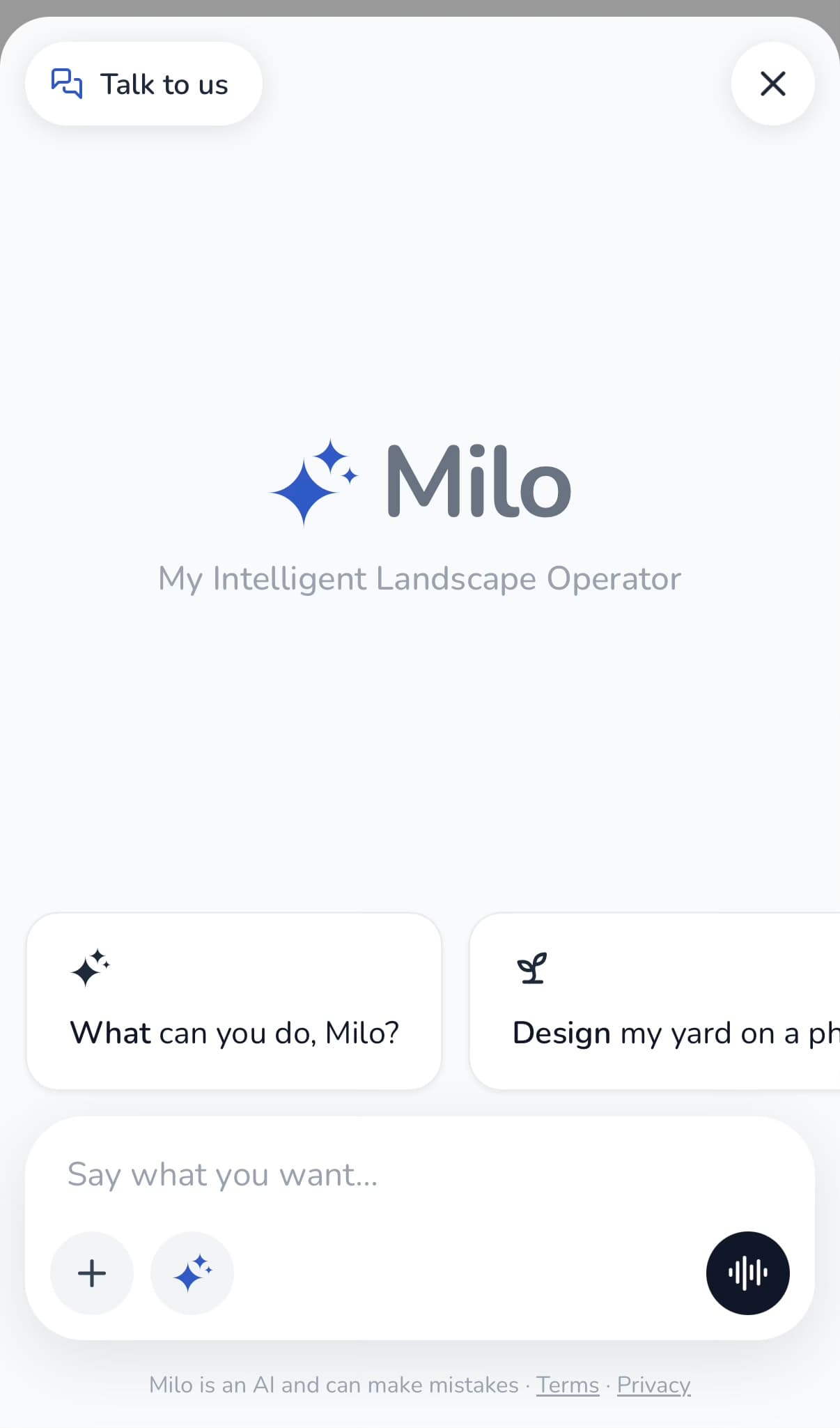
Milo is an AI, so it can occasionally get something wrong. Double-check anything important, and you can ask for a person at any time.
Open the "Talk to us" menu
To reach the team directly, select Talk to us in the top-left corner of the chat widget. That opens the connect menu, with a quick note from our founder and a card for each way to get in touch.
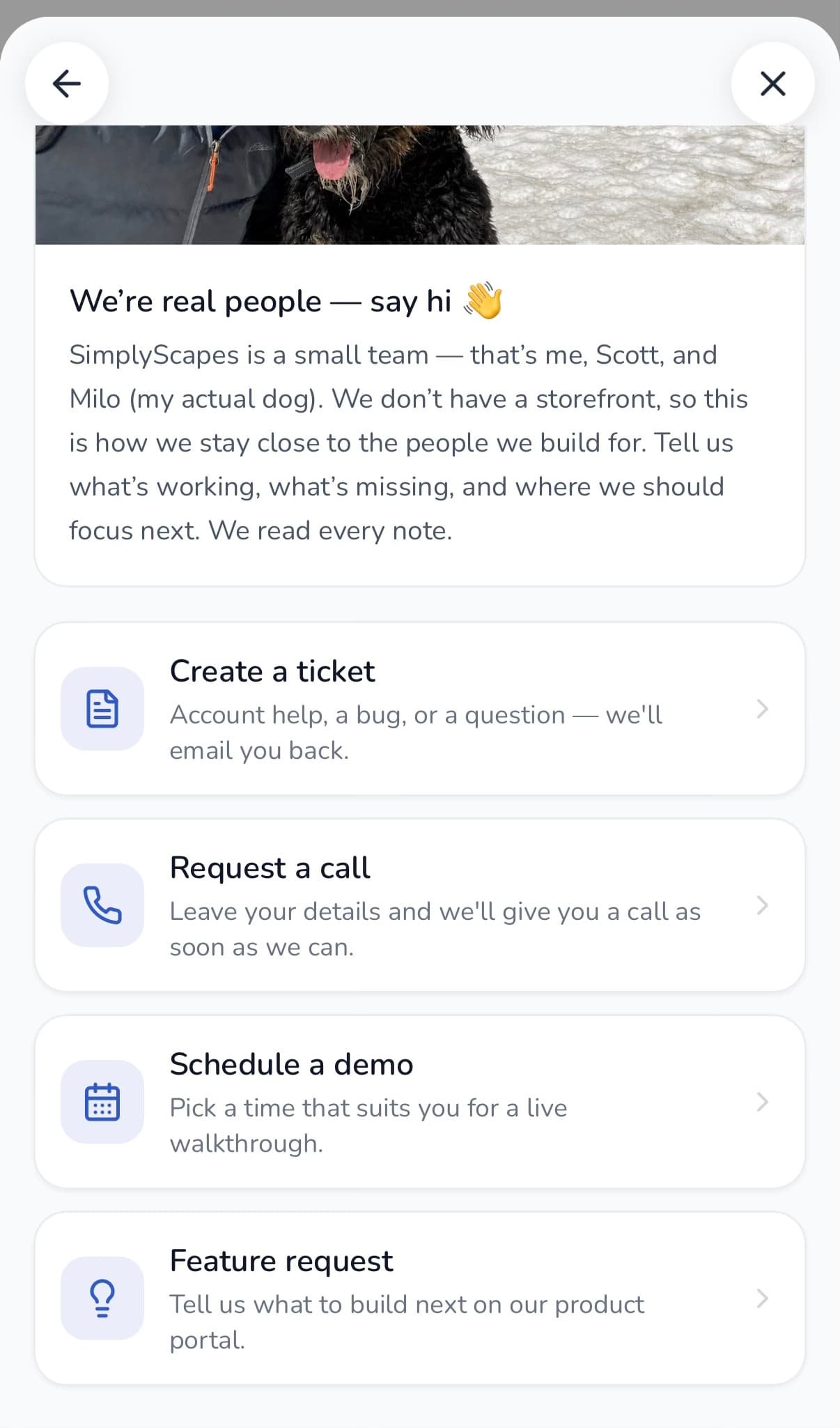
There are four options. Pick whichever fits what you need.
Create a ticket
Best for account help, a bug, or a question you'd like answered in writing. Tell us what's going on and we'll email you back.
- Select Create a ticket.
- Enter your name and email.
- Add a subject and a short description of your issue.
- Select Submit ticket.
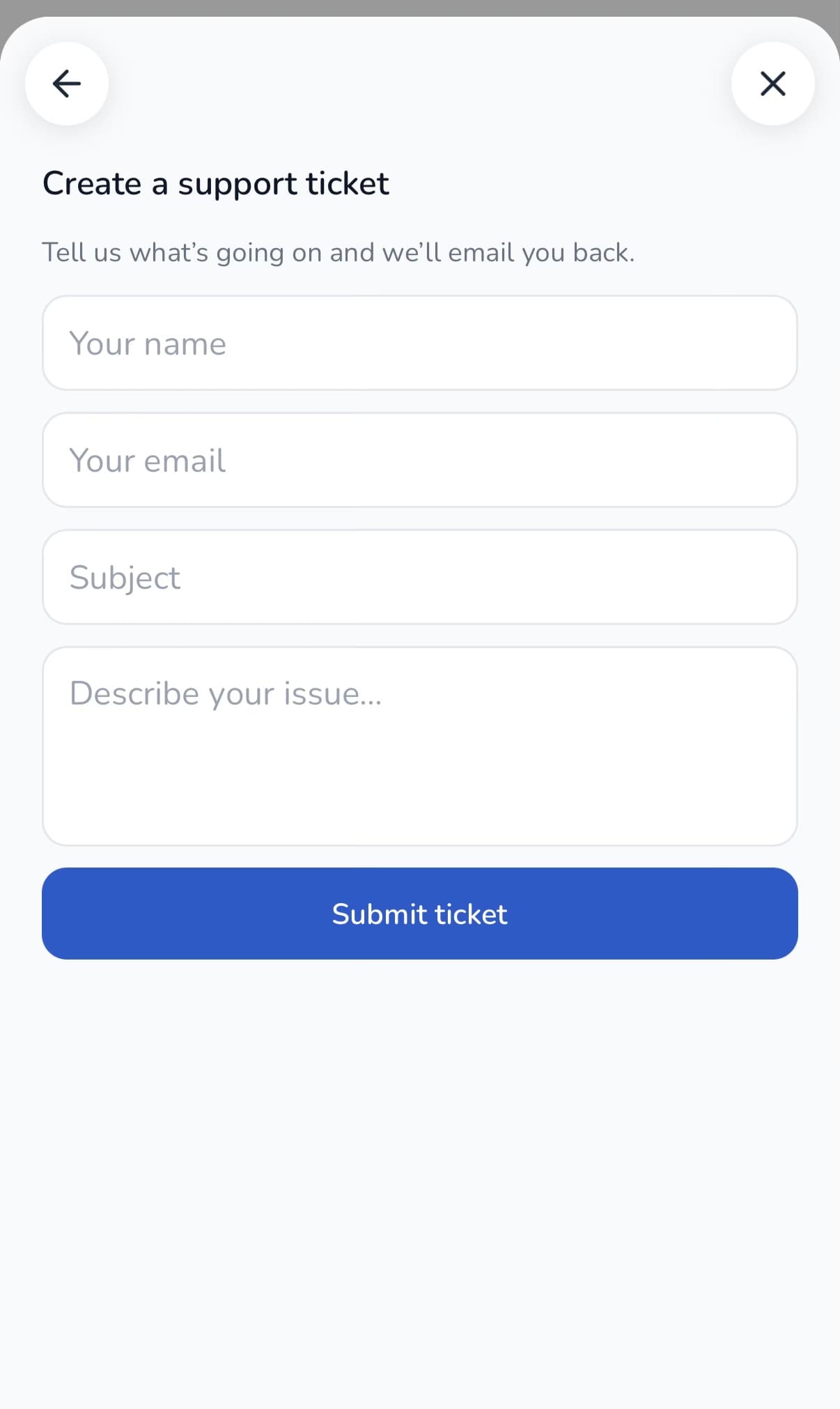
We reply to the email address you enter, so double-check it's correct.
Request a call
Prefer to talk it through? Leave your details and we'll call you — there's no number to dial.
- Select Request a call.
- Enter your name, phone number, and email.
- Optionally, add a note about anything you'd like us to cover on the call.
- Select Request a call.
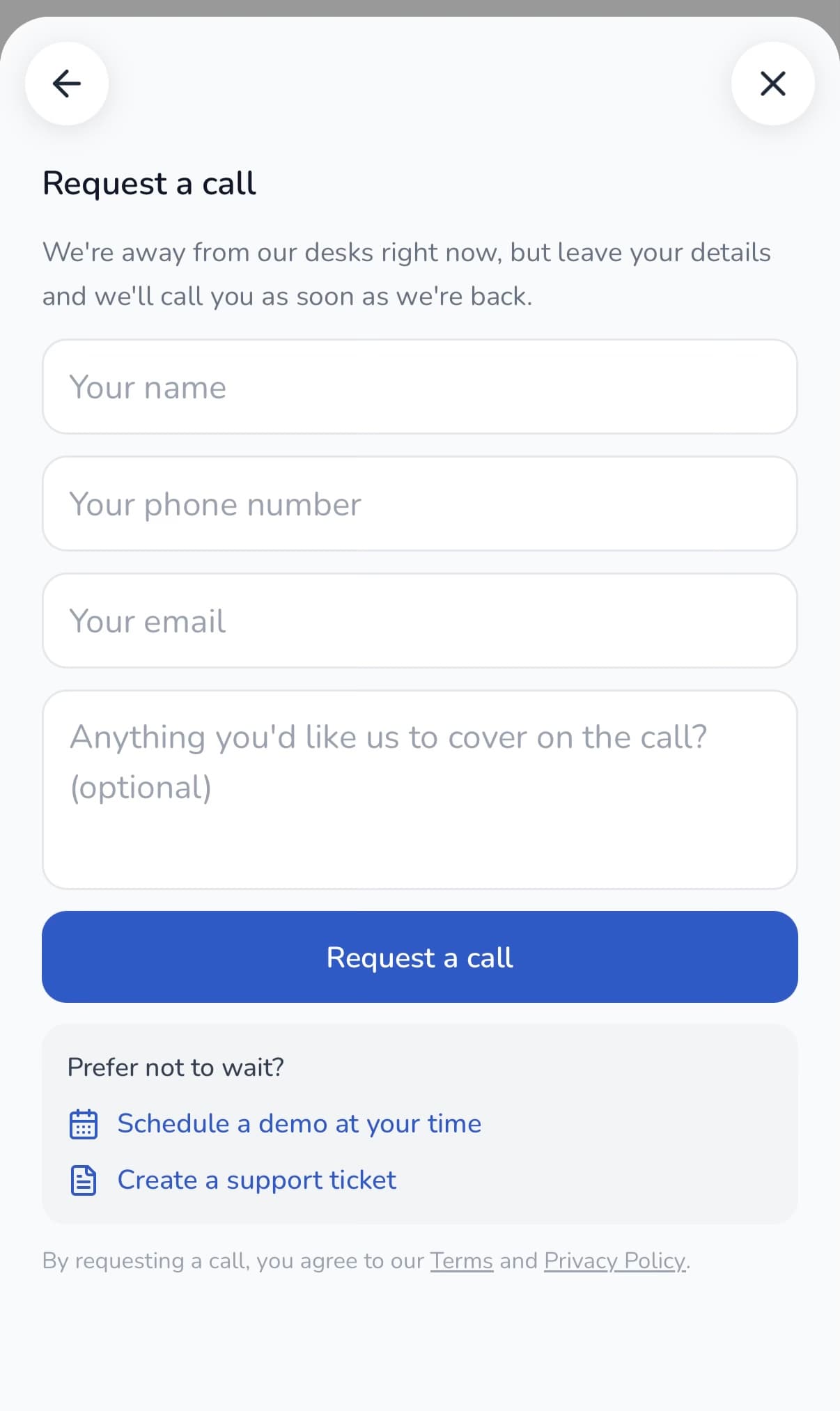
If we're at our desks, we'll call you right back — usually quickly, though maybe not the exact moment you ask. If we happen to be away, we'll reach out as soon as we're back, and you'll see quick links to Schedule a demo or Create a ticket in case you'd rather not wait. Requesting a call means agreeing to our Terms and Privacy Policy, linked at the bottom of the form.
Schedule a demo
Exploring SimplyScapes for a team or business? Select Schedule a demo to pick a time that suits you for a live walkthrough. It opens our scheduler in a new tab so you can grab a slot on the calendar.
Feature request
Have an idea for what we should build next? Select Feature request to open our product portal, where you can post an idea, vote on requests from other customers, and follow our public roadmap as features ship. It opens in a new tab.
Do you have a phone number?
We don't publish a phone number, and there's no call center to dial. Instead of putting you in a queue, we'd rather call you at a time that works: use Request a call from the Talk to us menu (above) and we'll ring you back as soon as we can. If you'd rather pick the time yourself, or you're evaluating SimplyScapes for a team, Schedule a demo for a live walkthrough.
Prefer email?
You can always reach us directly at support@simplyscapes.com and we'll get back to you.