How do I create a list of my favorite plants?
Save your go-to plants to a favorites list with the heart icon so your preferred picks stay at the top of the plant library for quick access on every design.
Steps to create your favorites list
-
Open the Plant panel
-
Locate your desired plant in the library. For plant groups with multiple image options, a heart icon appears in the top right corner
-
For single plants without a visible heart icon:
- Select the details button (positioned above and to the right of the plant)
- Click the heart icon in the top right corner of the details box
-
Remove plants by selecting the heart icon again — it will display a line through it once removed
Viewing your favorites
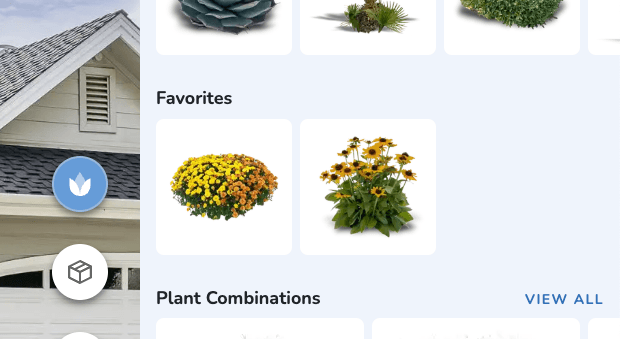
Your selected plants appear on the main plant library menu. When you've favorited multiple plants, a "view all" option becomes available, allowing you to see your complete collection.
How do I view plant details?
View complete plant details including mature size, hardiness zones, sun and water needs, bloom season, and local retailers to make informed design decisions.
Working with Objects
Bring your landscape design to life with decorative and structural objects like pergolas, fire pits, and furniture from the Object Library.