Forgot your password? No problem. Here's how to reset it:
Step-by-step instructions:
- Go to the SimplyScapes login page
- Click "Continue with email"
- Enter your email and click Next
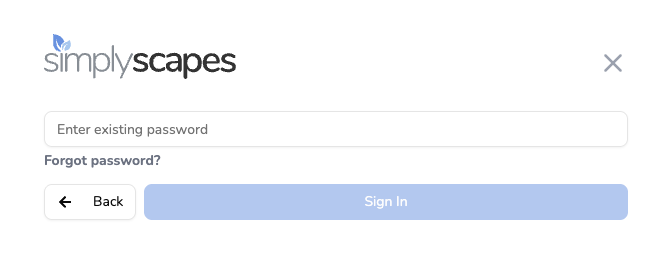
- Click "Forgot Password?" below the password field
- Enter the email address associated with your account
- Click "Send"
- Check your email inbox for a password reset link
- Click the link in the email
- Enter your new password twice to confirm
- Click "Reset Password"
You'll be automatically logged in and can start using SimplyScapes with your new password.
The "Forgot Password" link only appears if your email is registered in our system.

Can't remember which email you used? Search your inbox for "SimplyScapes" - we always send a welcome email when you create an account.
Still having trouble? Try these additional solutions:
- Check your spam folder for the reset email
- Ensure you're using the correct email address
- Wait a few minutes for the email to arrive
- Clear your browser cache and cookies if the page isn't loading properly
- Contact support if you continue to experience issues
Was this article helpful?
That’s Great!
Thank you for your feedback
Sorry! We couldn't be helpful
Thank you for your feedback
Feedback sent
We appreciate your effort and will try to fix the article