You can undo and redo changes to step backward or forward through your recent edits.
Step-by-step instructions
- In the bottom left corner of the canvas, you'll see two curved arrows with numbers beneath them. The top arrow (pointing backward) is the undo button. The bottom arrow is the redo button.
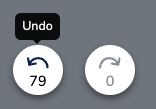

- Click the undo button to reverse your most recent change. The number beneath the arrow shows how many edits are available to undo.
- Click the redo button to restore a change you've undone. Redo works in reverse order—the most recently undone change will be the first one redone.
Was this article helpful?
That’s Great!
Thank you for your feedback
Sorry! We couldn't be helpful
Thank you for your feedback
Feedback sent
We appreciate your effort and will try to fix the article