The Clone Tool lets you trace around any area of your canvas and create a copy of it. This copy becomes a new design element that you can move, resize, duplicate, and layer—just like plants and objects. It's a powerful way to work with your background image creatively.
Step-by-step instructions
- Click the Clone Tool icon in the bottom right corner of the canvas (a dotted partial circle with a plus sign).
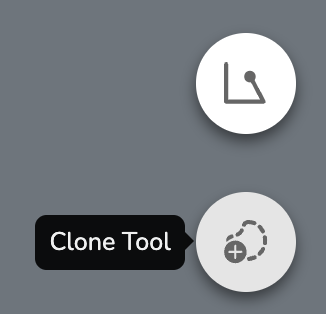
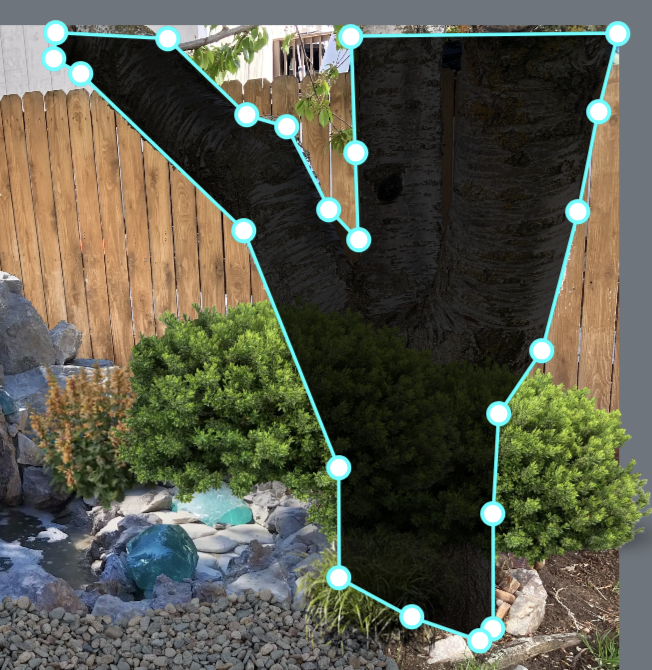
- Click around the area you want to clone, placing points to trace its outline. Make sure your last point connects back to your starting point to close the shape.
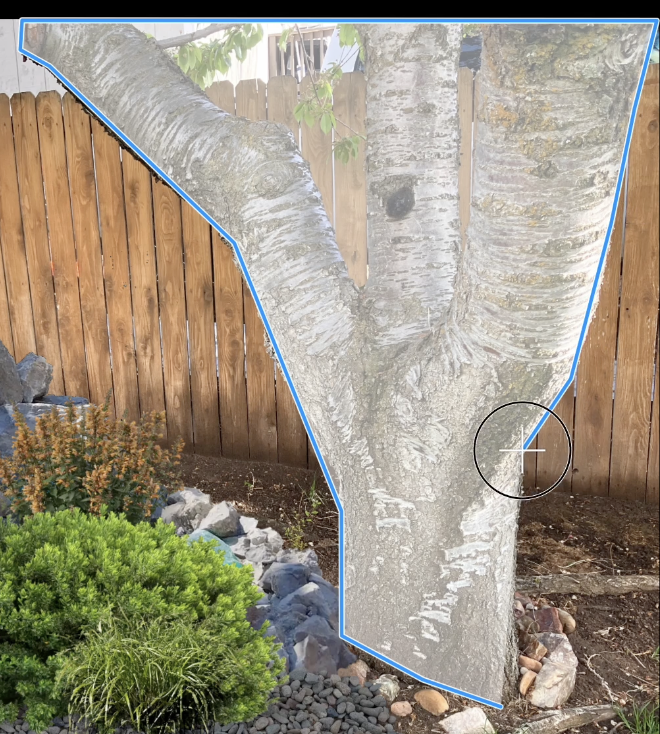
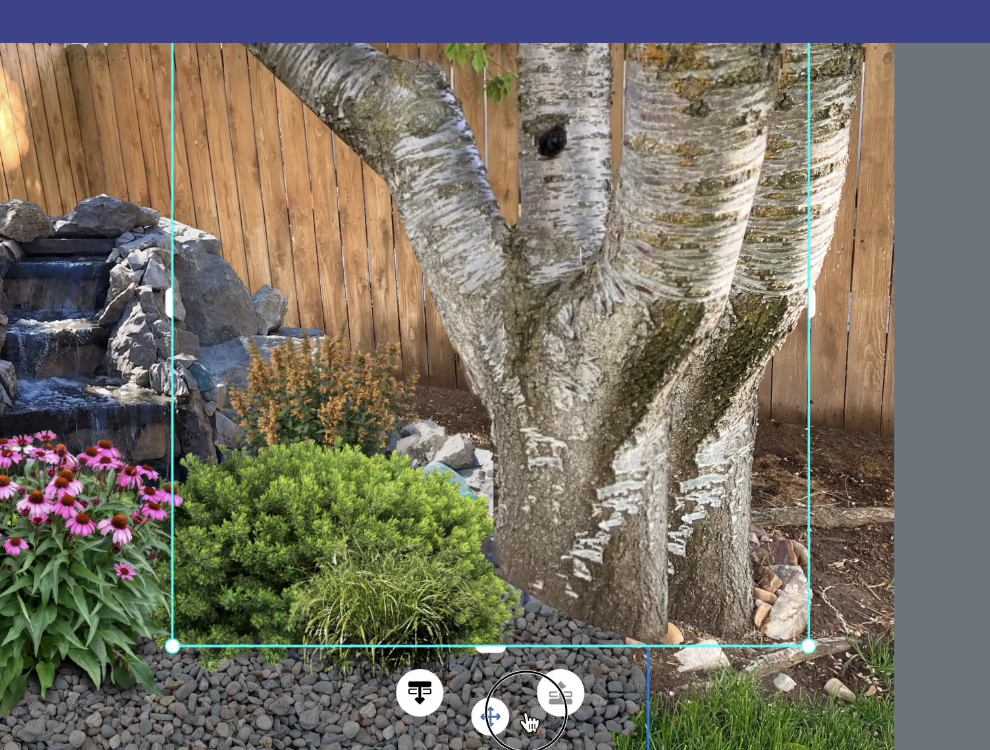
- Once the shape is closed, a copy of that area appears as a new design element. You can now move it anywhere on the canvas, resize it, or duplicate it as needed.
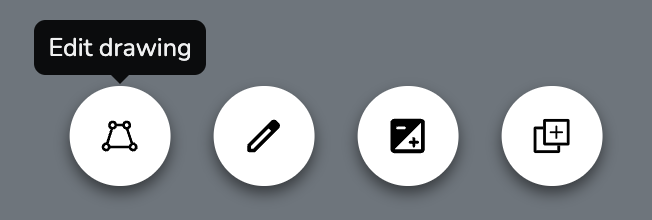
- (optional) To edit the shape of your cloned element, select it and click the first icon at the bottom center of the canvas (a trapezoid with circles on the corners). This lets you adjust or add points. When finished, click the same button again to exit edit mode.
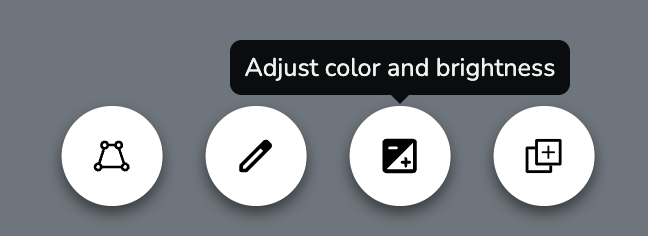
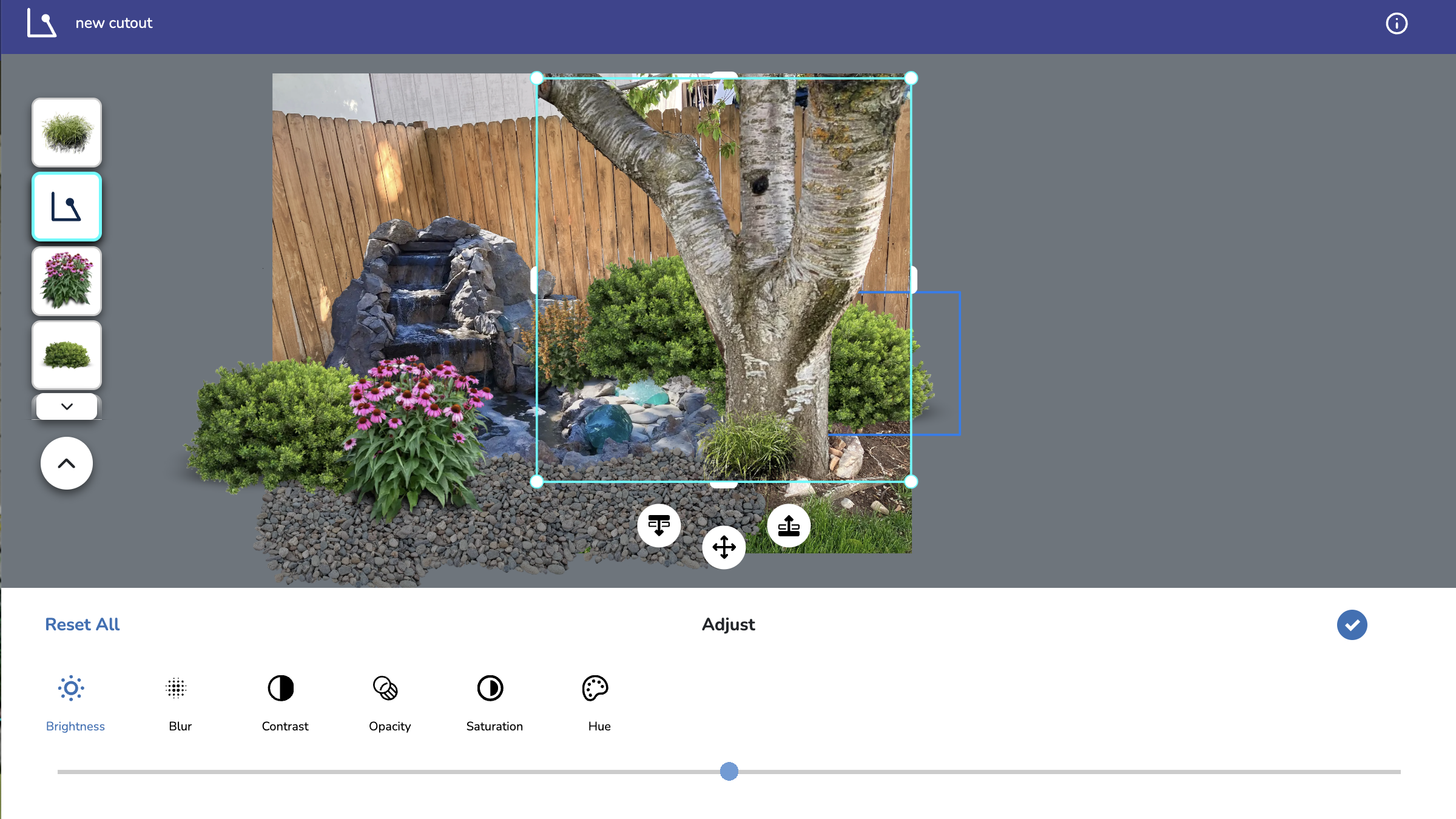
- (optional) To adjust image settings like brightness, blur, contrast, opacity, saturation, or hue, select your cloned element and click the second icon at the bottom center (two lines with circles).
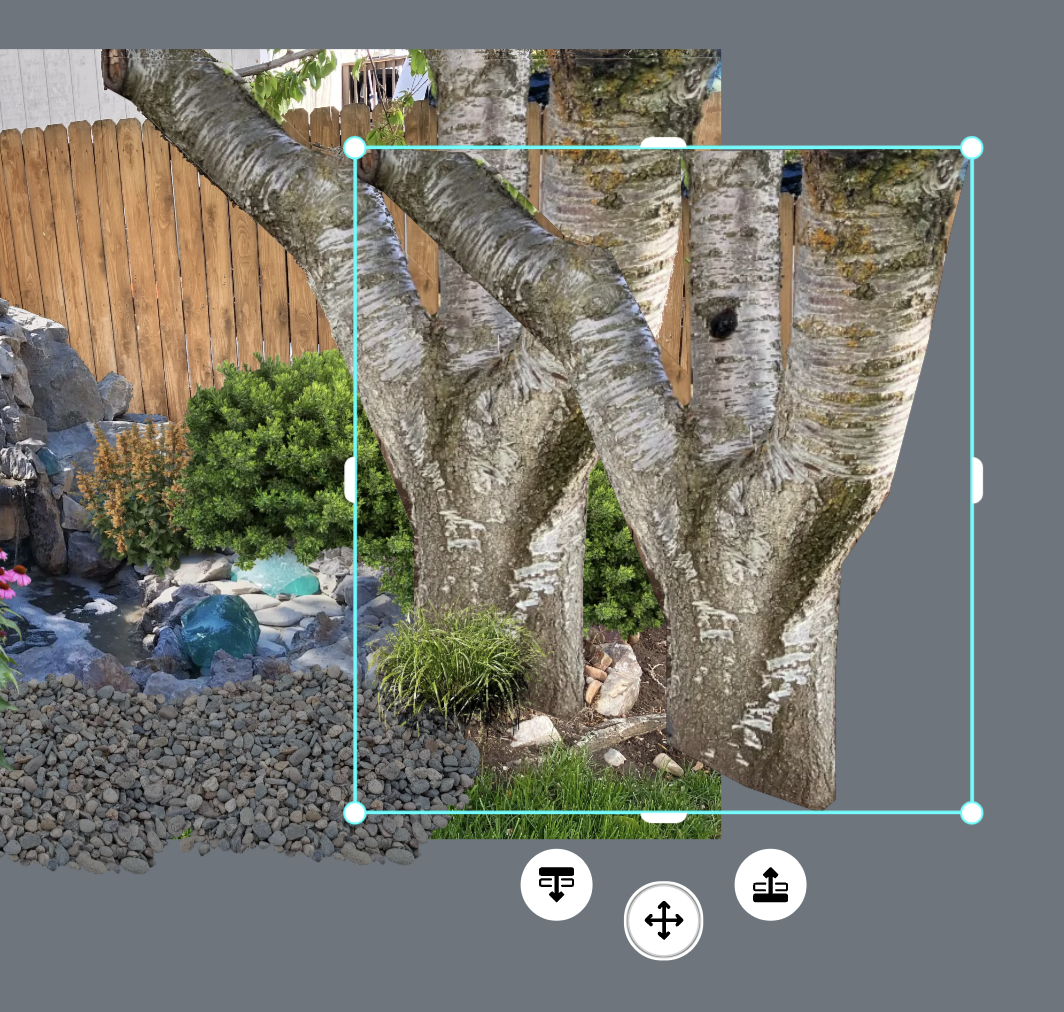
- (optional) To duplicate your cloned element, select it and click the third icon at the bottom center (two pages with a plus sign).

- To move your cloned element forward or backward relative to other items, use the layer arrows that appear on the left side of the canvas when the element is selected.
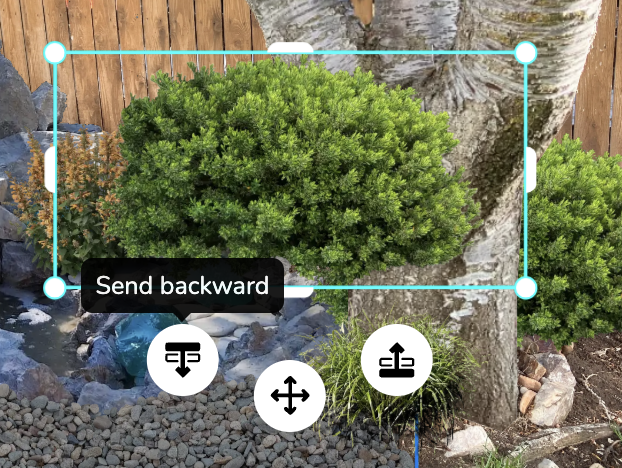
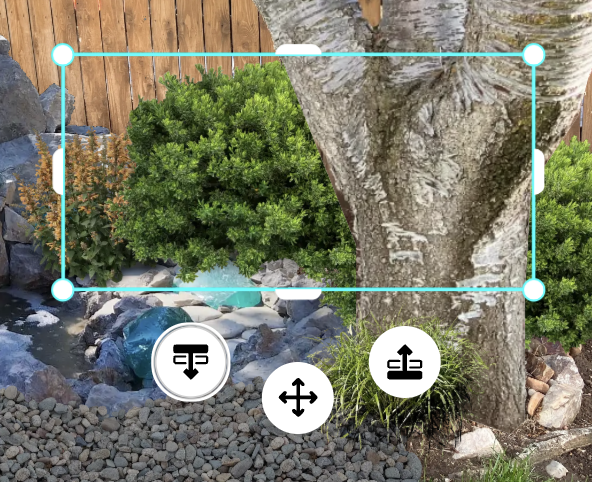
- To delete a cloned element, select it and click the red trash can icon in the bottom left corner, or press the Backspace key on your keyboard.
Examples
The Clone Tool can be used in several creative ways.
Example 1
Place items "behind" elements in your background image.
If you have a tree, fence, or other feature in your photo that you want plants to appear behind, trace around that feature with the Clone Tool. Then move the cloned element forward in the layer order. Now when you add plants or objects, they'll appear behind the cloned area, creating a realistic layered effect.
Example 2
Remove unwanted items from your background.
To hide something you don't want in your photo—like a trash can, garden hose, or parked car—use the Clone Tool to copy a nearby area with a similar texture (such as grass, gravel, or fence). Position the cloned element over the item you want to hide. Duplicate and resize as needed until the unwanted item is fully covered.
Example 3
Duplicate existing features in your photo.
If your background image contains an element you'd like to replicate—such as a decorative pot, garden ornament, or section of landscaping—trace around it with the Clone Tool. You can then duplicate, resize, and position copies wherever you'd like them in your design.
Was this article helpful?
That’s Great!
Thank you for your feedback
Sorry! We couldn't be helpful
Thank you for your feedback
Feedback sent
We appreciate your effort and will try to fix the article