How do I edit the shape of a drawn space?
Reshape a drawn planter bed or groundcover area anytime by moving and adding points along its outline with the Draw Tool, with changes saved automatically.
The Draw Tool enables you to modify groundcovers and other shapes at any time after creation.
Steps
-
Click on the shape to select it
-
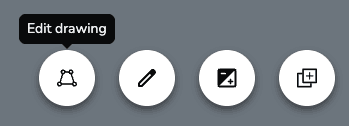
Select Edit Drawing in the selected-item toolbar. The original fill will be replaced with a dark, semi-transparent background, the border will turn blue, and each point will display as dots.
-
Edit the shape using any of these methods:
- Move an existing point by pressing and dragging it to a new location
- Add a point to the outline by clicking anywhere on the edge and dragging to a new location
-
Finalize your edits by doing one of the following:
- Select the close control in the contextual toolbar.
- Click anywhere outside the shape
- Press the Escape (ESC) key
Changes are saved automatically. You can undo edits by clicking the "Undo" button.

How do I draw planter beds and other spaces in my Visual Design?
Draw planter beds and groundcover areas with the Draw Tool, adding mulch, turf, and rock using pen, rectangle, or ellipse modes to shape your landscape design.
How do I change the material of a planter bed or space?
Swap the fill material of a drawn planter bed or space, replacing turf grass with mulch, rock, or another groundcover from the Material Library in a few clicks.