How do I delete a workspace?
Permanently delete a SimplyScapes workspace from the Danger Zone in settings. See exactly what data gets removed and why this action cannot be undone.
Deleting a workspace permanently removes all associated designs and data. This action cannot be undone.
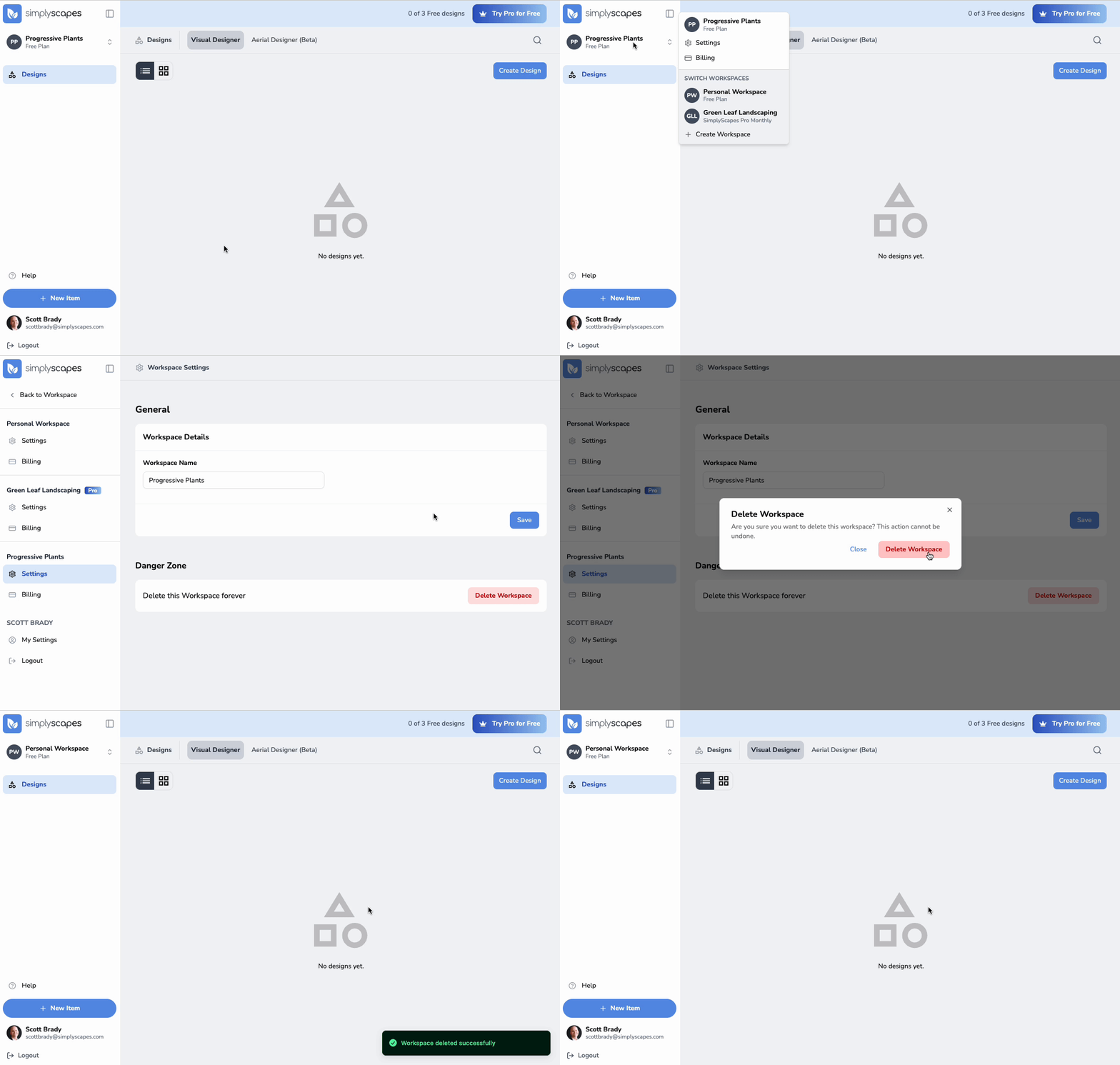
To delete a workspace
- Navigate to Workspace Settings (click workspace name → Settings)
- Scroll down to the Danger Zone
- Click "Delete Workspace"
- Read the warning about what will be deleted
- Click "Delete Workspace" to confirm
The workspace and all its designs will be permanently deleted immediately.
What gets deleted
- All Visual Designs in the workspace
- All site plans (if applicable)
- Custom uploaded images
- Workspace settings
Deleting a workspace does not delete your SimplyScapes account. You can continue using SimplyScapes with your remaining workspaces or create new ones.
How do I switch between workspaces?
Switch between your SimplyScapes workspaces in one click from the dashboard, moving instantly to another workspace with its own designs and settings.
Understanding the Dashboard
The SimplyScapes dashboard is your home base for managing landscape designs. Learn to navigate the layout, find your projects, and jump into your work fast.