I sign in, then get sent back to the sign-in page
Fix SimplyScapes sign-in when the app keeps returning you to the login screen. Covers Chrome cookie settings, browser extensions, antivirus HTTPS scanning, and managed work computers.
You enter your code (or use Continue with Google), it's accepted, and then SimplyScapes drops you right back on the sign-in page. Nothing you do sticks.
This is not a problem with your account, your password, or your code. Your browser is refusing to keep the small file — the sign-in cookie — that proves you're signed in. We hand it to the browser, the browser throws it away, and the next page you open looks like you never signed in at all.
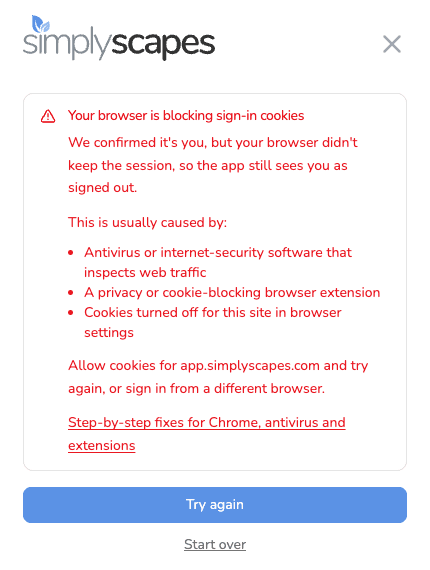
If both Continue with Google and the emailed code fail the same way, that's a useful clue. It rules out your email, your Google account, and your password. Something on your computer or network is discarding the sign-in cookie after we send it. That's what the rest of this article fixes.
Start here: the 60-second test
Open an Incognito window (Ctrl+Shift+N on Windows, Cmd+Shift+N on Mac) and try signing in at app.simplyscapes.com.
| What happens | What it means | Go to |
|---|---|---|
| Sign-in works in Incognito | A Chrome extension is deleting the cookie. Incognito turns extensions off by default. | Step 2 |
| Sign-in still fails in Incognito | An extension is not the cause — but Chrome's site settings, your antivirus, and your work policies all still apply in Incognito, so nothing else is ruled out yet. | Step 1 |
| Sign-in works in a different browser (Edge, Firefox) | The problem is inside Chrome — settings or extensions, not your network or antivirus. | Step 1 |
| It fails in every browser on this computer | Look at antivirus or a managed work computer. | Step 3 |
| It works on your phone using cellular data but not on Wi-Fi | Your network is filtering the connection. | Step 4 |
A common misunderstanding: Incognito does not ignore Chrome's per-site cookie blocks. If you've blocked this site, it stays blocked in Incognito too. So "it failed in Incognito" doesn't let you skip Step 1.
Step 1: Chrome is blocking data for this site
This is the most common cause, and people rarely remember doing it. One stray click on "Block" in the address bar, an old privacy cleanup, or a "speed up Chrome" tutorial is enough.
- In a new tab, go to chrome://settings/content/siteData (or Settings → Privacy and security → Site settings → Additional content settings → On-device site data).
- Under Default behavior, make sure Allow sites to save data on your device is selected. If Don't allow sites to save data on your device (not recommended) is selected, that blocks every site — switch it to Allow.
- Scroll to Customized behaviors and look under Not allowed to save data on your device.
- If you see
app.simplyscapes.com,simplyscapes.com, or[*.]simplyscapes.comthere, select the three-dot button at the end of that row and choose Remove. Repeat for any other SimplyScapes entry. - Go back to app.simplyscapes.com and sign in again.
To be certain, you can add it to the allow list: on the same page, under Customized behaviors → Allowed to save data on your device, select Add, enter [*.]simplyscapes.com, and select Add.
- Learn about on-device site data in Chrome
- Delete, allow and manage cookies in Chrome
- Change site settings permissions
Step 2: A browser extension is deleting it
An extension can remove the cookie a fraction of a second after Chrome saves it. Everything looks normal, and you still get bounced.
Don't try to work this out by reading each extension's permissions — cookie access doesn't show up in that list, so a well-behaved-looking extension can still be the culprit. Test instead:
- Go to chrome://extensions.
- Turn every extension off, then sign in. If that works, one of them is responsible.
- Turn them back on half at a time, signing in after each batch, until the guilty one reveals itself.
- Once you know which, either remove it or add app.simplyscapes.com to its allow list.
The usual suspects, most likely first:
| Extension | Why it does this |
|---|---|
| Cookie AutoDelete | Deletes cookies when you close a tab — exactly this symptom |
| Click&Clean, Close & Clean, other cookie cleaners | Wipe cookies on a timer or on browser close |
| Avast / AVG Online Security & Privacy | Its cookie-consent feature can decline storage for you |
| Consent-O-Matic, Super Agent, I don't care about cookies | Answer cookie banners for you, sometimes by refusing |
| Malwarebytes Browser Guard | Can block page content and storage |
| Ghostery | Anti-tracking can be over-aggressive |
| AdBlock / Adblock Plus | Rarely the cause, but easy to rule out |
| uBlock Origin Lite | Rarely the cause. The original uBlock Origin no longer runs in current Chrome |
| Privacy Badger, DuckDuckGo, Disconnect | Unlikely — they target third-party trackers, not first-party sign-ins |
If an extension can't be removed because your employer installed it, see Step 4. See also installing and managing Chrome extensions.
Step 3: Antivirus or internet-security software
Many security suites inspect encrypted web traffic by sitting invisibly between your browser and the internet. When that inspection goes wrong, the sign-in cookie can be altered or dropped on the way through. Others ship "anti-tracking" or "PC cleanup" tools that delete cookies on purpose.
Test it: pause your antivirus's web protection for a few minutes, sign in, then turn it straight back on. If sign-in works while it's paused, add app.simplyscapes.com as an exception rather than leaving protection off.
Never leave your antivirus disabled. Use its exception or allow list so you stay protected.
| Software | Feature to check |
|---|---|
| Avast | Web Guard (formerly Web Shield) → HTTPS scanning; also AntiTrack |
| AVG | Web Shield → HTTPS scanning |
| Bitdefender | Online Threat Prevention → Encrypted Web Scan, Anti-tracker, Safepay — unblock a safe site |
| Kaspersky | Encrypted connection scanning; Safe Money banking browser |
| Norton | Safe Web extension; sites unavailable after installing Norton |
| ESET | SSL/TLS protocol filtering |
| Trend Micro | Web Threat Protection — can't sign in to websites |
| Avira | Web Protection; Browser Safety extension |
| Sophos Home | Web Protection |
| Malwarebytes | Browser Guard allow list |
| Webroot | Web Threat Shield; Identity Shield |
| McAfee | WebAdvisor — allow a website |
| F-Secure | Browsing Protection blocking a safe site |
Two things worth knowing. Windows Defender, the protection built into Windows, does not inspect encrypted traffic and cannot cause this — if Defender is all you run, skip to Step 4. And several suites include a hardened "banking browser" (Kaspersky Safe Money, Bitdefender Safepay, Avast/AVG Bank Mode) that can quietly move a login into a separate window with its own, separate cookie storage. If a different-looking browser window appeared when you signed in, that's what happened.
Desktop cleanup tools do this too, on a schedule rather than instantly — CCleaner and AdGuard both have settings to keep cookies for sites you choose.
Step 4: A work, school, or managed computer
If this is a company laptop, your IT department may control Chrome's cookie behaviour, or your network may inspect encrypted traffic on the way out.
- Go to chrome://policy. If you see a list of policies (rather than an empty page), your browser is managed by an organisation.
- Look for
DefaultCookiesSetting,CookiesBlockedForUrls,CookiesSessionOnlyForUrls,ClearBrowsingDataOnExitList, orBrowsingDataLifetime. - Send your IT team this article and ask them to allow cookies for
[*.]simplyscapes.com, and to bypass TLS/SSL inspection for that domain.
Please don't try to work around your employer's security settings — ask them to make the change. Corporate web gateways such as Zscaler and Netskope both support per-domain bypasses, and this is a routine request.
A different problem: signed out every time you restart Chrome
If you can sign in and work normally, but you're signed out again the next time you open Chrome, that's a separate setting — not the failure this article covers.
Go to chrome://settings/content/siteData. If Delete data sites have saved to your device when you close all windows is selected, that's the cause. Either choose Allow sites to save data on your device, or keep it and add [*.]simplyscapes.com to the Allowed to save data on your device list so we're exempt.
Still stuck?
Email support@simplyscapes.com and include:
- The email address you're signing in with
- Whether both Continue with Google and the emailed code fail
- Your browser and version (Chrome menu → Help → About Google Chrome)
- Your operating system, and the name of your antivirus or internet-security software
- Whether it works in an Incognito window, in a different browser, or on your phone
That last line is the one that saves the most time — it usually tells us the cause before we've replied.
Related
- I can't log in — the code didn't arrive, or it's rejected as wrong or expired
- Regaining access to your account — lost email access, or designs split across two accounts
I can't log in
Get back into SimplyScapes fast. Fix sign-in problems when your passwordless login code never arrives, is wrong or expired, or Google sign-in fails.
My photo won't upload
Fix failed photo uploads in SimplyScapes with supported formats for each upload spot, file size limits, HEIC tips, and simple retry steps to get your design started.